Linear Training Run
Training Runs Overview#
The page consists of a panel providing access to training and a list of training runs.
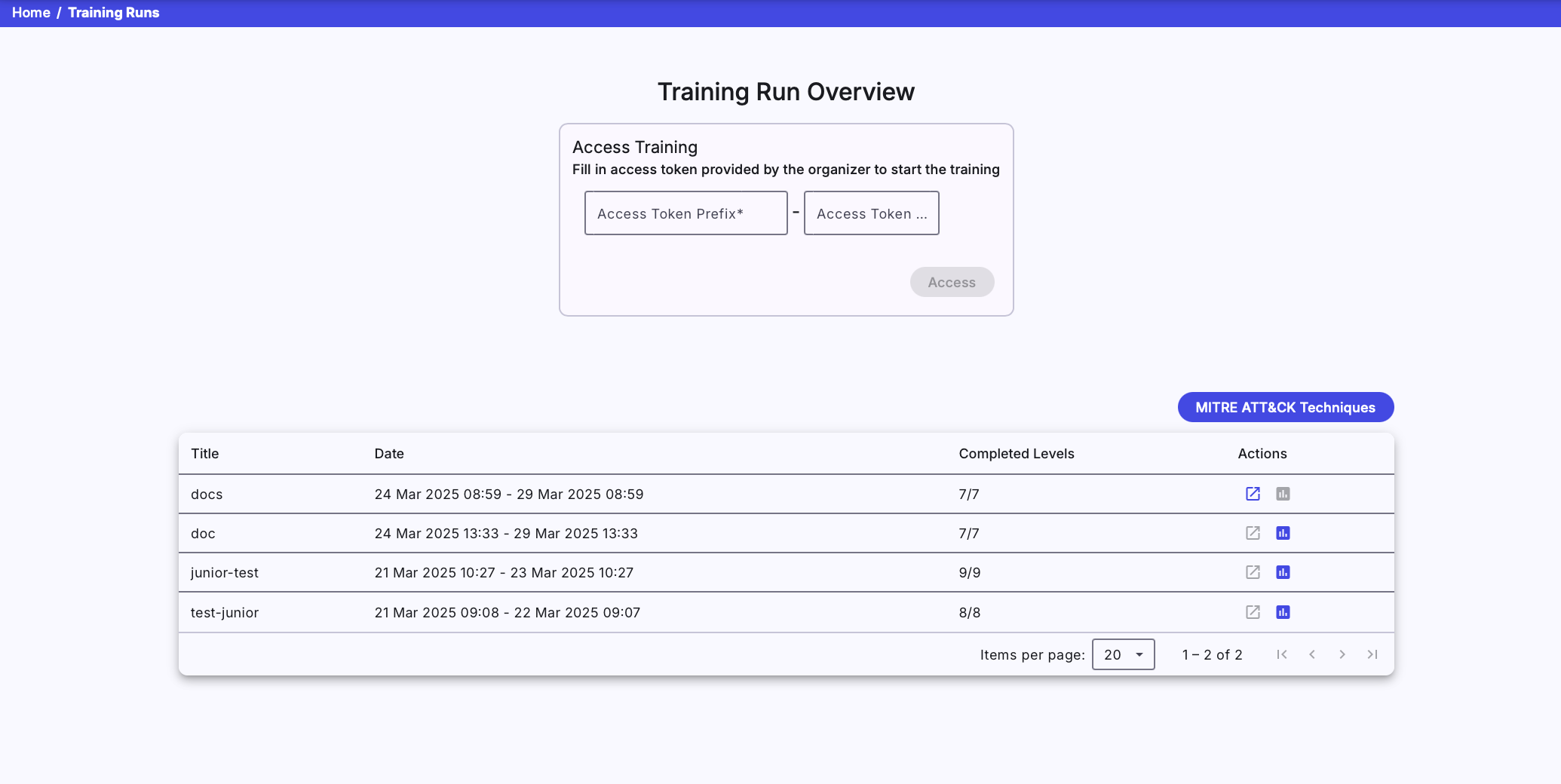
1. Access Training#
Enter the access token prefix and PIN provided by the instructor of the training instance into the two fields shown in the above figure. By clicking on the  button, the system checks if there are any active training instances with a corresponding access token and any available sandboxes. If those conditions are fulfilled, the trainee will access the training run (particular training) with an assigned unique sandbox.
Note
If a trainee has already accessed a training run in a particular training instance and hasn’t finished it yet, the training run will be resumed.
If a trainee has finished one training run, he will not be able to start another one instantly. However, to enable another run of the same training, you can delete the old run.
2. Training Runs#
It lists all training runs of the logged-in trainee. Each table row represents a training run of a particular training instance (trainee can access multiple training runs within training instance). The training run can be unfinished or finished. An unfinished run can be resumed using the button or entering the access token in the Access Training panel.
A trainee can view the results of the finished training run by clicking the :material-poll-box:{: .blue .icon} button.
Training Run#
In the training run, trainees will go through predesigned levels. There is a bar listing all of the levels in order at the top of the training run page. Visited levels are highlighted in blue , the currently selected level is highlighted in gold , and non-visited are in grey . If backward mode is enabled by an instructor, a trainee can move between visited levels by clicking the level in the bar. In the current version, there are four types of levels available (Assessment, Info, Access, and Training).

1. Assessment Level#
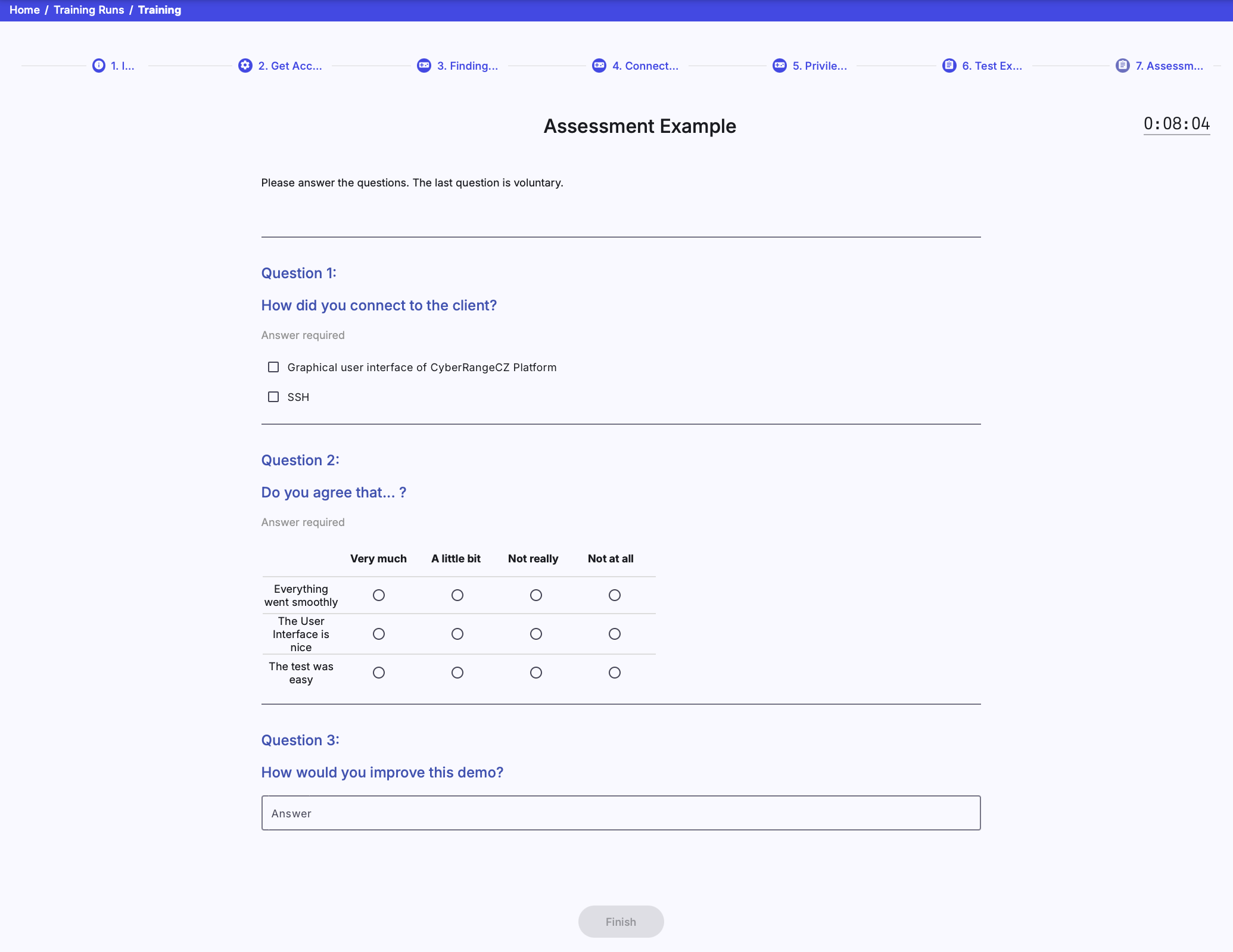
At the assessment level, a trainee must answer the different types of questions. Assessment can be a questionnaire or test. If it is a test, the trainee should try his best to get the best score because questions are scored. Some of the questions can be required and must be answered to proceed to the next level.
There are three types of questions:
- Free Form Question (FFQ): Trainees are asked to provide the text answer to the predefined field.
- Multiple Choice Questions (MCQ): Trainees are asked to select only correct answers from the choices offered as a list.
- Extended matching item (EMI): Trainees are asked to pair rows and columns.
2. Info Level#
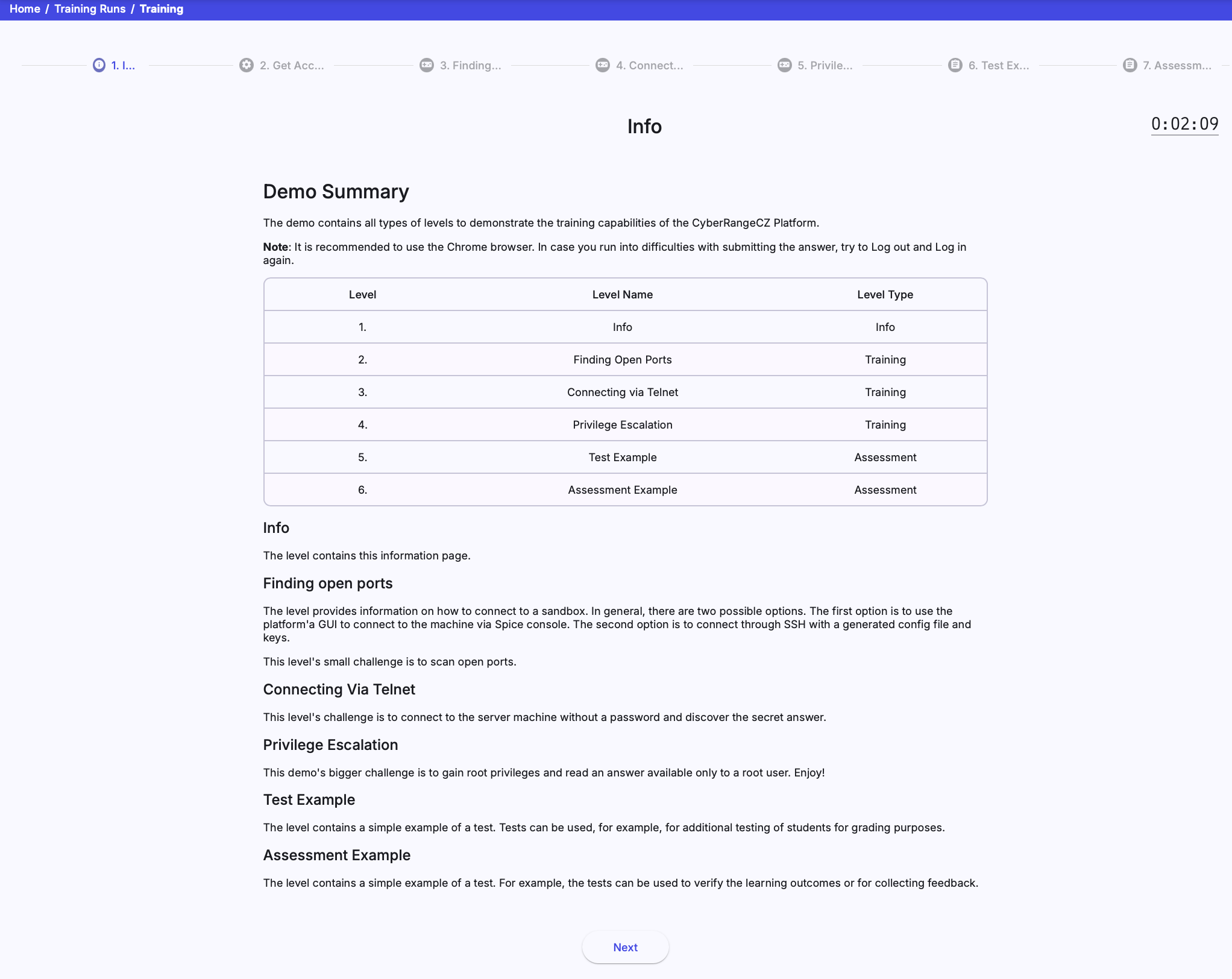
The info level provides important information to trainees in text form.
3. Access Level#
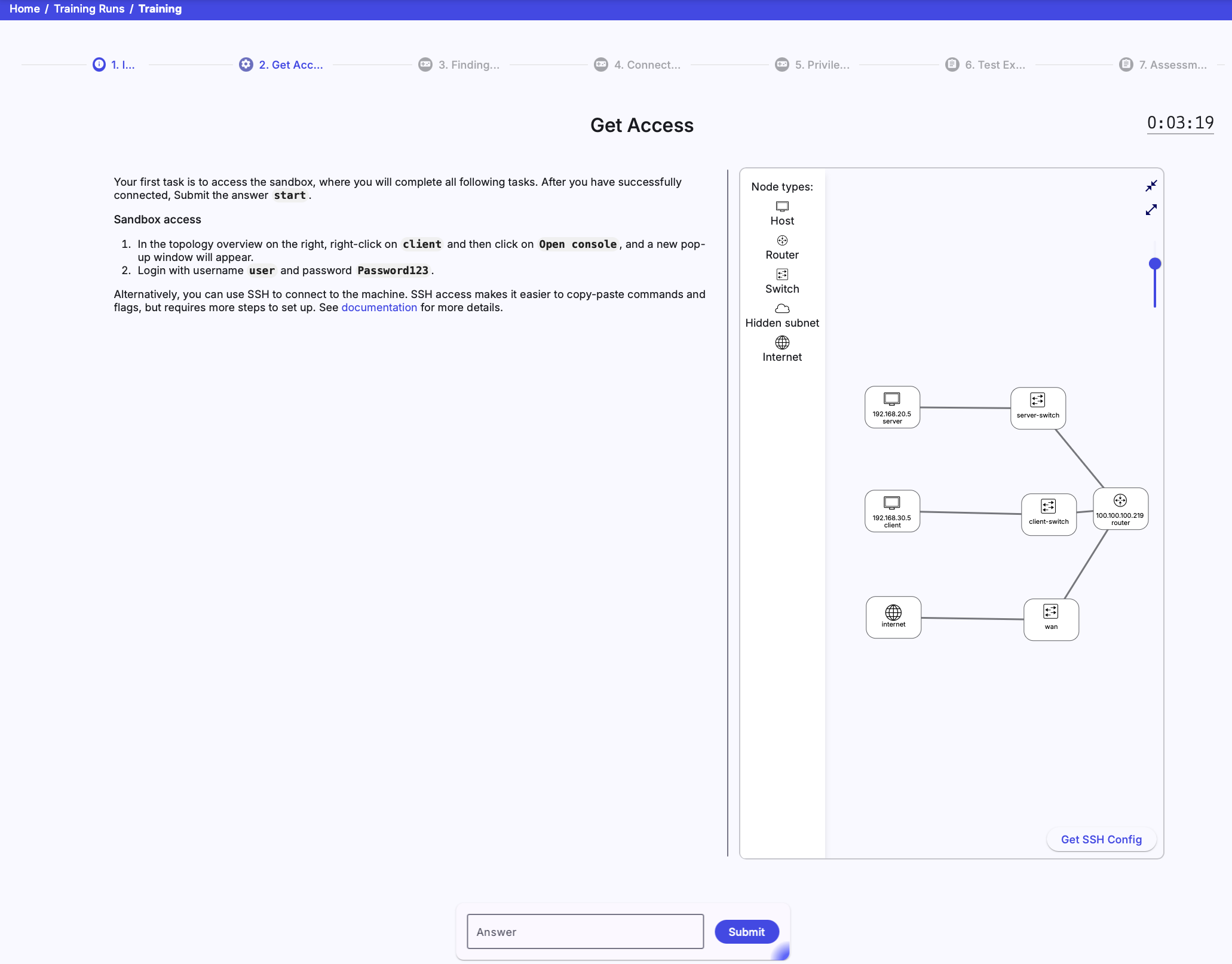
The access level provides information to trainees on how to access cloud or local sandbox.
4. Training Level#
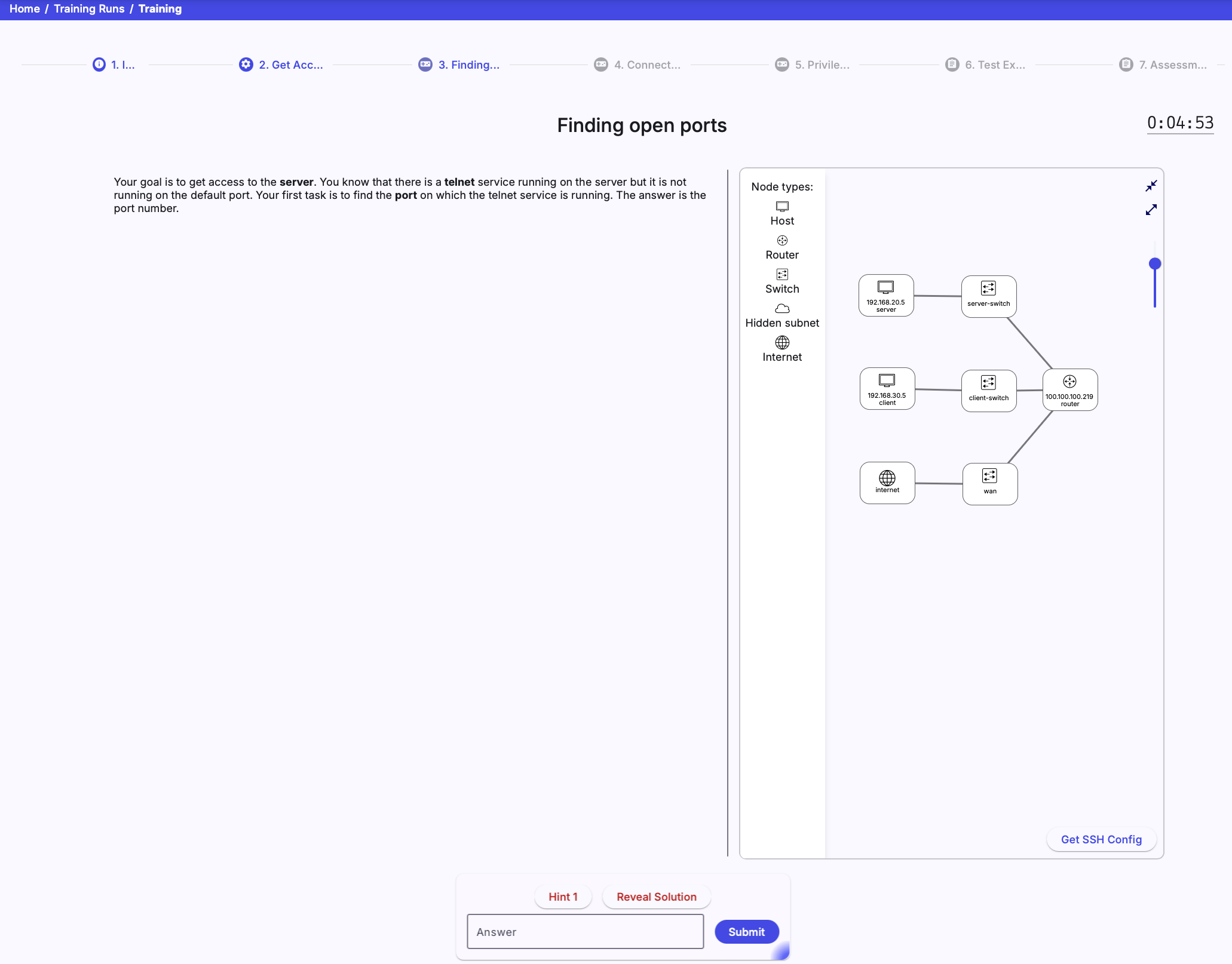
The trainee must complete the assignment specified on the page’s left side at the training level. On the right side, the sandbox topology supplemented by legend is displayed. The layout of the topology can be changed with the controls panel (see the following figure):
Hints#
If a trainee is stuck on the training level, they can reveal hints by clicking the  button. Hints are revealed one by one, and each revealed hint will cost the trainee some points that could be awarded at the given level. The amount of lost points is specified by the training definition for each hint. The trainee can reveal as many hints as they want, but the more hints they reveal, the fewer points they can get for completing the level.
Solution#
If hints are not enough, the trainee can reveal the solution by clicking the  button. Solution reveal will cost the trainee all of the points that could be awarded at the given level. Similarly to hints, the solution is specified by the training definition for each training level.
Submit#
When the trainee finds out the answer for the current training level, they can proceed to the next level by typing the answer to the input field and submitting it by clicking the  button in the control panel.
Topology#
The right side of the training level page contains the topology of the sandbox assigned to the training run. Inside the topology panel is a representation of the sandbox network topology. Each node in the topology represents a machine in the sandbox, and edges represent network connections between machines.
The topology is interactive. The panel can be resized and collapsed. The nodes can be rearranged by dragging and the viewport can be dragged and zoomed in and out.
There are 4 types of nodes in the topology:
- Internet: Is the root node of the topology, and it represents the internet connection to the sandbox
- Router: Represents a router machine in the sandbox - can be connected to.
- Network: Represents a network of the router in the sandbox
- Host: Represents a host machine in the sandbox - can be connected to.
The nodes form a hierarchy, where the internet is the root node, routers are the children of the internet, networks are the children of routers, and hosts are the children of networks.
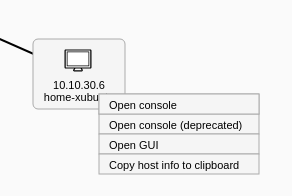
Right-click on the selected network node (host or router), the following menu will be opened:
-
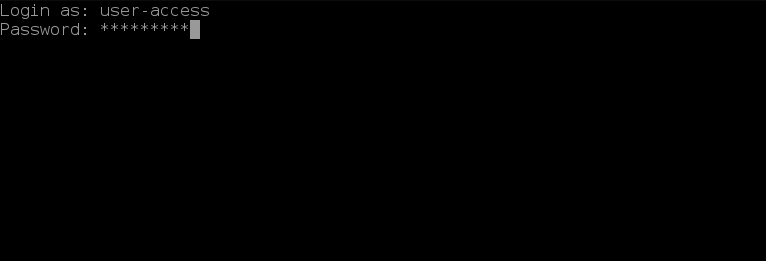
Open Console: Connect to the particular network node’s Command Line Interface (CLI) using the Apache Guacamole. When you connect to the Guacamole, you will see the following console in a new tab inside the topology panel.
-
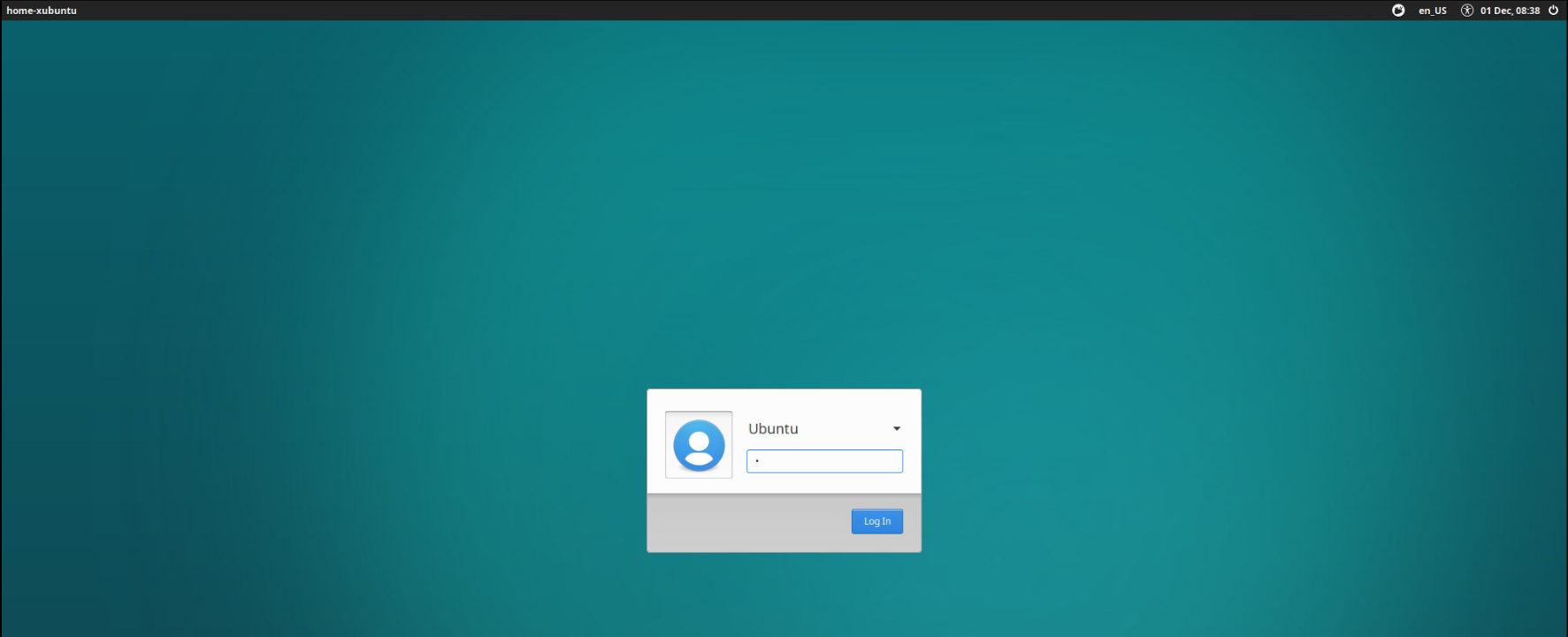
Open GUI: Connect to the particular network node’s Graphical User Interface (GUI) using the Apache Guacamole. This option might not be visible if the VM does not have GUI configured.
-
Open … in new Window: Opens either CLI or GUI console in a new browser tab.
Warning
All the above options of connecting to the corresponding VM require correct login credentials. Upon entering invalid credentials, the Guacamole connection will be closed immediately.
Tip
Double-click a node to instantly open CLI.
Use ctrl+alt+left/right arrow keys to switch between opened Guacamole tabs.
SSH Access#
In addition to connecting to the sandbox using Guacamole, it is also possible to connect to the sandbox machines locally using SSH. To do that, click the  button and download the ZIP archive with the configuration of a user SSH access to the respective sandbox. More about SSH access can be found in Sandbox SSH Access.
Training Run Results#
When the trainee finishes a training run, they will see the visualization of their and the other players’ behavior in training. The visualization is described in detail in Visualizations for Linear Training.